A long time ago I did a post on using slicer selections in Excel formulas. That technique only worked when you select single values on slicers, though – any more than one and the dreaded “(Multiple items)” foils your well-laid plans.
How to handle that multi-select case became a very common question – in email and posted as comments.
Awhile back I responded privately to one of those requests but haven’t had time to post the solution. So here goes.
The Solution, Summarized
First, here’s a picture of the solution I came up with. For fun, see if you can figure out what I’m doing just by looking at it:
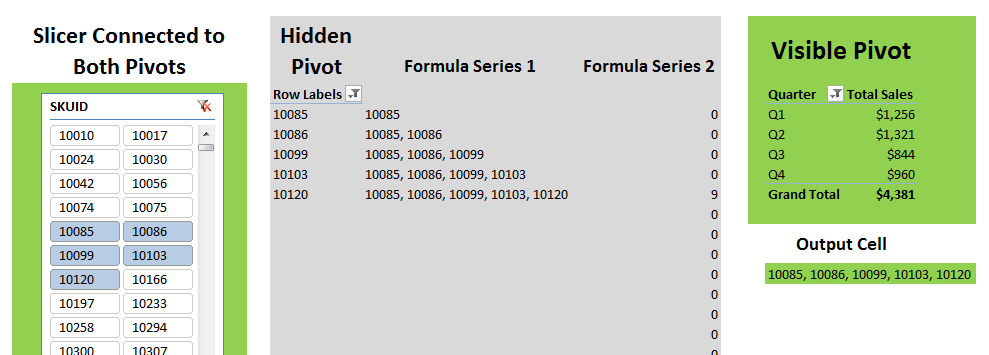
Everything in green is visible to the final report consumer (or at least, you can choose to make it so). Everything in grey is stuff you likely hide – either by hiding columns or by placing on a hidden sheet. The SKUID field is on the slicer (that is hooked to both pivots) and is also on the row axis of the hidden pivot, but is not included on the visible pivot.
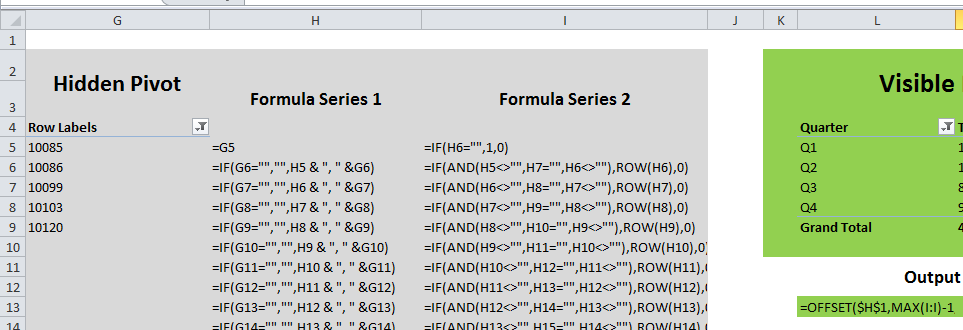
Here’s the same spreadsheet, but zoomed in and with formulas visible:
I went ahead and uploaded this workbook so you can take a look in a hands-on manner.
CLICK HERE TO DOWNLOAD THE WORKBOOK
Note that this was a PowerPivot workbook originally but I think I nuked all the data out of it, so you won’t be able to manipulate the pivots. No worries though – the formulas here are 100% of the technique and should work with any pivot.
I’m pretty sure I could simplify this a little bit if I tried, but probably not by much. I eagerly await everyone’s constructive input ![]()
Update, November 2012
I’ve since posted yet another way to do this that is probably the simplest I’ve personally used to date, and it handles multi select quite well too:
http://www.powerpivotpro.com/2012/11/better-way-to-catch-multiple-slicer-selections-in-a-formula/


Hey Rob – I got this UDF a while ago from somewhere on the internets that concatenates a range of cells:
Function concat(useThis As Range, Optional delim As String) As String
' this function will concatenate a range of cells and return one string
' useful when you have a rather large range of cells that you need to add up
Dim retVal, dlm As String
retVal = ""
If delim = Null Then
dlm = ""
Else
dlm = delim
End If
For Each cell In useThis
If CStr(cell.Value) "" And CStr(cell.Value) " " Then
retVal = retVal & CStr(cell.Value) & dlm
End If
Next
If dlm "" And retVal "" Then
retVal = Left(retVal, Len(retVal) - Len(dlm))
End If
concat = retVal
End Function
Using this, you can setup a little function that concatenates the row label headers:
Function ptHeaders(dummyValue As Variant) As String
Dim pt As PivotTable
Set pt = ActiveSheet.PivotTables(1)
ptHeaders = concat(pt.RowRange.Offset(1, 0), ",")
End Function
It would of course be better to pass the name of the pivot table instead of hard coding the reference, but don’t have time this morning to look that up. I’m sure it’s simple to do.
Then just call =ptHeaders({reference to sales total from visible pivot table}) in your Output cell to get the list of SKUs selected.
Now there’s an Excel-style solution for you!
Because I have up to 8 slicers in my PowerPivots I like to save space and use a single formula based solution that limits the number of shown multiple selections to 4. Anything more and they get a “More than 4″ message (obviously you can expand the formula to capture as many selections that make sense for the subject in question)
Here is a sample formula for the slicer Region_Name:
=IF(ISERROR(CUBERANKEDMEMBER(“PowerPivot Data”,Slicer_Region_Name,5)),IF(CUBERANKEDMEMBER(“PowerPivot Data”,Slicer_Region_Name,1)=”all”,”All Regions”,”Region(s): “&CUBERANKEDMEMBER(“PowerPivot Data”,Slicer_Region_Name,1))&IFERROR(“, “&CUBERANKEDMEMBER(“PowerPivot Data”,Slicer_Region_Name,2),”")&IFERROR(“, “&CUBERANKEDMEMBER(“PowerPivot Data”,Slicer_Region_Name,3),”")&IFERROR(“, “&CUBERANKEDMEMBER(“PowerPivot Data”,Slicer_Region_Name,4),”"),”More than 4 Regions”)
Your solution above is exactly what I am in search of, yet I cannot get it to work. When I do the following:
=IF(ISERROR(CUBERANKEDMEMBER(“PowerPivot Data”,Slicer_Close_Year1,5)),IF(CUBERANKEDMEMBER(“PowerPivot Data”,Slicer_Close_Year1,1)=”all”,”All Years”,”"&CUBERANKEDMEMBER(“PowerPivot Data”,Slicer_Close_Year1,1))&IFERROR(“,”&CUBERANKEDMEMBER(“PowerPivot Data”,Slicer_Close_Year1,2),”"))&IFERROR(“,”&CUBERANKEDMEMBER(“PowerPivot Data”,Slicer_Close_Year1,3),”")&IFERROR(“,”&CUBERANKEDMEMBER(“PowerPivot Data”,Slicer_Close_Year1,4),”")
This will work for the first 4 slices made, once you select a 5th slice, you will see “False and the first 2 slices made” in the cell.
But if I do this:
=IF(ISERROR(CUBERANKEDMEMBER(“PowerPivot Data”,Slicer_Close_Year1,5)),IF(CUBERANKEDMEMBER(“PowerPivot Data”,Slicer_Close_Year1,1)=”all”,”All Years”,”"&CUBERANKEDMEMBER(“PowerPivot Data”,Slicer_Close_Year1,1))&IFERROR(“,”&CUBERANKEDMEMBER(“PowerPivot Data”,Slicer_Close_Year1,2),”"))&IFERROR(“,”&CUBERANKEDMEMBER(“PowerPivot Data”,Slicer_Close_Year1,3),”")&IFERROR(“,”&CUBERANKEDMEMBER(“PowerPivot Data”,Slicer_Close_Year1,4),”"),”More than 4 Years”)
Excel says there is an error in the formula.
Not sure what I am missing.
Any help is greatly appreciated.
Ken
I posted an alternative, MDX-based solution to this problem here: http://cwebbbi.wordpress.com/2012/10/22/returning-selected-items-in-an-excel-slicer-using-mdx-in-powerpivot-and-ssas/
brilliant idea! well done